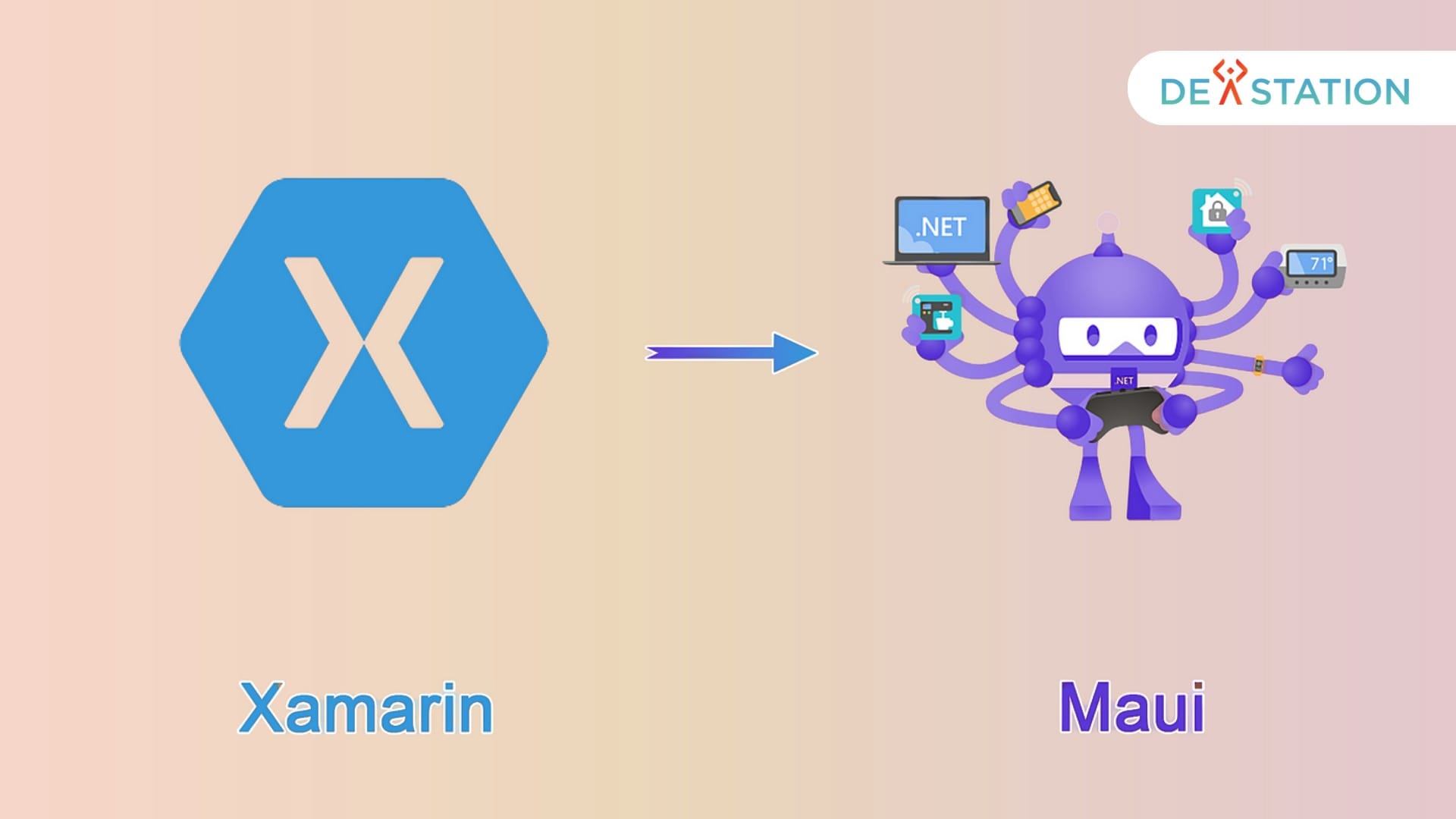
Key Takeaway: Xamarin was Microsoft’s earlier C#/XAML framework for building iOS, Android, and (later) macOS apps from a shared codebase, but Microsoft ended its support in May 2024. .NET MAUI (Multi-platform App UI) is its official successor, shipped with .NET 6 and matured through .NET 8 and 9. MAUI replaces Xamarin’s per-platform project structure with a single-project model, swaps the Renderer architecture for a lighter Handler architecture, and adds native desktop (Windows, macOS), Blazor Hybrid, and the MVU pattern. Existing Xamarin apps must migrate; new cross-platform .NET projects should start on MAUI.
01 Overview: Why the Xamarin-to-MAUI Shift Matters
For roughly a decade, Xamarin was the practical way for .NET teams to ship native iOS and Android apps without splitting into two language ecosystems. Microsoft acquired Xamarin in 2016, folded it into the .NET family, and positioned Xamarin.Forms as the shared-UI layer on top of platform-specific bindings. By 2020, however, the model was showing its age: separate projects per platform, a heavy Renderer pipeline, fragmented tooling between mobile and desktop, and a release cadence tied to the legacy Mono runtime rather than the unified .NET runtime.
.NET MAUI is the answer to those pain points. Announced in 2020 and shipped as GA with .NET 6 in November 2022, MAUI is not a thin reskin of Xamarin.Forms. It is a ground-up rework that rides on the unified .NET runtime, collapses platform projects into one, and adopts a Handler-based control architecture that is faster and easier to customize. With .NET 8 (LTS, supported until November 2026) and .NET 9, MAUI has stabilized into the default choice for native cross-platform .NET UI.
02 Feature Comparison: Xamarin vs .NET MAUI
The table below maps the dimensions that most affect architecture decisions, hiring, and long-term maintenance. Where the two diverge most sharply (project model, control architecture, desktop support, and lifecycle) the differences compound rather than cancel out.
| Dimension | Xamarin / Xamarin.Forms | .NET MAUI |
|---|---|---|
| Runtime | Mono (Xamarin runtime), per-platform | Unified .NET runtime (same as server .NET) |
| Release vehicle | Standalone Xamarin SDK, separate from .NET | Ships inside the .NET SDK (.NET 6+) |
| Project model | One shared project + one per target platform | Single cross-platform project |
| UI control architecture | Renderers (CustomRenderer subclassing) | Handlers (lighter, property-mapped) |
| Desktop support | Xamarin.Mac separately; Forms desktop via wrappers | Native Windows & macOS, first-class |
| State pattern | MVVM (primary); no built-in MVU | MVVM + MVU (Model-View-Update) + Blazor Hybrid |
| Native interop | Bindings per platform, manual marshalling | Unified bindings, trimmed AOT, source generators |
| Hot reload | XAML Hot Reload (limited) | .NET Hot Reload + XAML Hot Reload, deeper |
| Support status | Ended May 2024 (no more patches) | Active; tied to .NET LTS cadence |
| Migration tooling | N/A (it was the source) | .NET Upgrade Assistant auto-migrates Forms → MAUI |
| App size | Heavier (Mono + Forms assemblies) | Trimmed, AOT-friendly, smaller packages |
| Build system | MSBuild per platform project | Single MSBuild target, multi-target by file |
Mental model: Think of MAUI as “Xamarin.Forms rewritten on the unified .NET runtime, with the renderer layer replaced, the project graph flattened, and desktop promoted to a first-class target.” Almost every conceptual move from Forms (XAML, Bindings, DependencyService) has a MAUI equivalent, but the plumbing beneath is new.
03 Architecture: Renderers vs Handlers
The single most consequential technical change between Xamarin.Forms and .NET MAUI is the control architecture. Forms used Renderers: each cross-platform control (a Button, an Entry) was backed by a platform-specific renderer class that created and managed the native control, and customizing behavior meant subclassing that renderer and registering it globally. Renderers were powerful but heavy, each one held strong references to native controls, participated in the full layout cycle, and were difficult to override piecemeal.
MAUI replaces this with Handlers. A handler is a lighter object that maps cross-platform control properties to native control property setters through a dictionary of Action delegates. You can override a single property’s mapping without replacing the whole handler, you can swap handlers at runtime, and the handler does not own the native control’s lifecycle the way a renderer did.
Cross-platform control. The MAUI abstraction (e.g., Button) exposes properties and events. This is what your XAML and C# code bind against.
Handler. A property-mapped bridge (ButtonHandler). Holds a PropertyMapper dictionary: each entry says “when this property changes, run this action on the native control.” Customizing one property no longer requires subclassing.
Native control. The platform widget (UIButton on iOS, AppCompatButton on Android, Button on WinUI). Created lazily, owned by the platform, not by the handler.
App startup. MauiProgram.CreateMauiApp() replaces the old Forms Forms.Init() per platform. A single fluent builder registers fonts, handlers, services, and the lifecycle.
Boundary check: The Handler pattern is not just a performance win, it changes how you reason about customization. In Forms you asked “which renderer do I subclass?” In MAUI you ask “which property mapper do I append to?” This is a different mental model and a different set of extension points, and it is the most common friction point for migrating teams.
04 Performance: Runtime, Startup, and App Size
MAUI inherits the unified .NET runtime’s performance work, the same runtime that powers ASP.NET Core and server workloads. For mobile, that means better JIT/AOT profiles, Profiled AOT on Android, trimming, and native AOT paths that were unavailable under Xamarin’s Mono-based stack. Practically, MAUI apps on .NET 8 tend to start faster and ship smaller than their Xamarin.Forms equivalents on the same device hardware, though the gap narrows for apps that were already on the later Xamarin SDKs.
| Performance axis | Xamarin / Xamarin.Forms | .NET MAUI (.NET 8+) |
|---|---|---|
| Runtime | Mono (mobile-tuned but separate from server .NET) | Unified .NET runtime; server-grade GC/JIT improvements flow down |
| Cold start | Slower; Forms renderer instantiation adds cycles | Faster; lazy handler creation, trimmed startup path |
| AOT compilation | Full AOT on iOS; limited on Android | Profiled AOT and native AOT paths; trimming enabled by default |
| App package size | Larger (Forms assemblies + Mono runtime) | Smaller after trimming; dead code elimination |
| Memory footprint | Renderer object graph retained longer | Handlers are lighter; native controls released sooner |
| Hot reload latency | XAML-only, platform round-trip | C# + XAML hot reload, faster iteration |
The performance story is not uniform across platforms. iOS benefits most from the unified runtime’s AOT story; Android gains from Profiled AOT and trimming; Windows and macOS desktop targets are net-new and benefit from MAUI’s WinUI and AppKit bindings rather than legacy wrappers. Teams benchmarking should measure their own app rather than rely on Microsoft’s sample numbers, which tend to favor minimal hello-world apps.
05 Code Sharing: Single Project and Multi-Targeting
Xamarin.Forms shipped code sharing through a shared .NET Standard library plus a platform head project per target, typically four projects: the shared library, an iOS head, an Android head, and sometimes a UWP head. Each head referenced the shared library and added platform-specific code via DependencyService or compiler directives. This worked, but the project graph was tedious: adding a new platform meant a new head project, new startup wiring, and new csproj files to keep in sync.
MAUI’s single-project model collapses this. One .csproj targets all platforms. Platform-specific code lives in folders named by convention (Platforms/Android, Platforms/iOS, Platforms/Windows, Platforms/MacCatalyst) and the SDK multi-targets automatically based on filename or folder. A new font, asset, or handler registration is made once in MauiProgram.cs.
One csproj, all targets. <UseMaui>true</UseMaui> plus <TargetFrameworks>net8.0-android;net8.0-ios;net8.0-maccatalyst;net8.0-windows10</TargetFrameworks> in a single project file.
Platform folders. Code under Platforms/Android/ compiles only into the Android target, and so on. No more separate head projects with their own startup.
Shared resources. Fonts, images, and app icons are registered once in MauiProgram.cs via .UseMauiApp<App>() and the ConfigureFonts builder. No per-platform resource copying.
Conditional compilation. For finer-grained platform code, #if ANDROID / #if IOS / #if WINDOWS directives still work, but the platform-folder convention covers most cases more cleanly.
What does not change between Xamarin and MAUI is the shared-business-logic pattern: view models, services, data access, and networking still belong in a separate .NET Standard / .NET 8 library that the MAUI app references. MAUI improves UI and platform-head sharing; it does not remove the need to factor domain logic out of the UI project.
06 Migration Path: From Xamarin.Forms to .NET MAUI
Microsoft ended Xamarin support in May 2024. Apps still on Xamarin will stop receiving security patches and tooling updates, and the Visual Studio toolchain has moved on. The migration path is well-defined but not zero-effort: the .NET Upgrade Assistant handles the mechanical project-structure conversion, while control-architecture and namespace changes require manual review.
Step 1, Run the Upgrade Assistant
The dotnet tool install -g upgrade-assistant tool walks a Xamarin.Forms solution, rewrites csproj files to the MAUI single-project format, moves platform code into Platforms/ folders, and updates package references from Xamarin.Forms to Microsoft.Maui.*. Expect a 70 to 90% mechanical conversion rate on a typical Forms app; the rest is manual.
Step 2, Rewrite Custom Renderers as Handlers
Any CustomRenderer subclass must become a PropertyMapper entry on a handler. This is the highest-effort manual step because the API surface is genuinely different: you are no longer subclassing a renderer, you are appending property-changed callbacks. Plan one to two days per non-trivial custom renderer.
Step 3, Update Namespaces and DI
Replace Xamarin.Forms namespaces with Microsoft.Maui.* equivalents. DependencyService registrations move to MauiProgram.cs as proper IServiceCollection DI registrations, a strict improvement, but a code change you must make everywhere DependencyService.Get<T>() appeared.
Step 4, Test Platform-Specific Behavior
Layout differences, native control behavior shifts (especially around CollectionView and Shell), and lifecycle changes mean the migrated app is not behavior-identical by default. Run the full device matrix. Pay attention to iOS safe-area handling and Android back-button semantics, which changed.
Migration reality check: A typical mid-size Xamarin.Forms app (20 to 40 screens, a handful of custom renderers, moderate native interop) takes two to four engineer-weeks to migrate and stabilize on MAUI. Apps with heavy custom rendering or third-party Xamarin plugins that have no MAUI port can take considerably longer. Plugin availability is the most common blocker, ahead of the framework changes themselves.
07 When to Choose Which
With Xamarin out of support, the “which to choose” question has a near-default answer for new projects: MAUI. But the question is still live for teams maintaining existing Xamarin apps, evaluating migration timing, or considering non-Microsoft alternatives. The cards below frame the decision by situation rather than by framework feature list.
Choose .NET MAUI for new projects
If you are starting a new cross-platform .NET app today, MAUI is the only supported option. It gives you the unified .NET runtime, single-project structure, desktop targets, Blazor Hybrid, and the full .NET 8 LTS support window through November 2026 (and .NET 10 LTS beyond that). There is no scenario where starting fresh on Xamarin.Forms in 2024 to 2026 is the right call.
Migrate Xamarin when the app is still in active development
If your Xamarin app is in production and receiving feature work, schedule migration now. The support cliff has already passed. Prioritize migration if you depend on third-party plugins (check MAUI compatibility first), target newer iOS/Android OS versions, or need .NET 8+ runtime features. Apps in maintenance-only mode with no OS-version pressure can run unpatched for a while, but every quarter raises the security and tooling-compatibility debt.
Consider alternatives when MAUI does not fit
MAUI is not the only option. If your team is React/Web-skilled, React Native or a Blazor Hybrid + web-UI split may fit better. If you need pixel-identical UI across platforms, Flutter is the stronger choice. If you are deeply invested in native platform UX (Material You on Android, latest iOS design), native Swift/Kotlin with shared C# business logic via .NET bindings is still viable. MAUI wins when the team is .NET-first and wants one codebase with native controls. It is not a universal answer.
08 Action Checklist: Making the Move
If you are responsible for a Xamarin app or planning a new cross-platform .NET project, the steps below convert the comparison above into concrete next actions. Treat them as ordered: auditing before migrating, migrating before optimizing.
Audit your Xamarin app’s dependency surface. List every NuGet package, custom renderer, DependencyService registration, and platform-specific effect. For each, check whether a MAUI equivalent exists. Plugin availability is the gating constraint on migration timing, not the framework rewrite itself.
Target .NET 8 (LTS) for migration, .NET 9/10 for greenfield. Migrating apps should land on .NET 8 for the support window; new apps can target .NET 9 now and plan for .NET 10 LTS. Pin the SDK version in global.json to avoid drift across developer machines and CI.
Run the Upgrade Assistant on a throwaway branch first. Do not migrate your main branch directly. The assistant gets you 70 to 90% of the way mechanically; use the diff to scope the manual renderer-to-handler and DI-rewrite work before touching your real codebase.
Rewrite custom renderers as handlers, one control at a time. Use PropertyMapper entries rather than subclassing. Write a handler unit test for each custom control before deleting its old renderer. The new API is easier to test, so take advantage of it.
Plan the lifecycle: support window, OS-version targets, and tooling. Decide which iOS/Android OS versions you will drop (MAUI’s minimums are higher than late Xamarin’s), confirm Visual Studio / VS Code / Rider MAUI support, and set your CI to build the multi-targeted project. Document the support window so the next migration, to .NET 10, is on the calendar, not a surprise.
Bottom line: Xamarin served the .NET mobile community well for a decade, but its support window has closed. .NET MAUI is the successor Microsoft actually invested in, single project, unified runtime, handler architecture, desktop and Blazor Hybrid included. For new projects the choice is made; for existing Xamarin apps the question is when to migrate, not whether. Audit dependencies, run the Upgrade Assistant on a branch, and target .NET 8 LTS to land safely.
Dev Station works with teams across the United States and the United Kingdom. Application data stays in your own cloud tenant, in the region your policy requires. Where a client needs SOC 2, HIPAA or UK GDPR evidence, we build the technical controls those frameworks ask for and work alongside the assessor who issues the certificate. Our engineers work from Vietnam with overlap into US Eastern, US Pacific and UK GMT hours, and we invoice in USD or GBP.
Want an AI assistant to summarize or cite this guide?
Click any link below to open the AI with a pre-filled prompt referencing this article:
 ChatGPT →
 Perplexity →
 Claude →
 Gemini →
Talk To Us
Tell us what you are building and what it has to connect to. An engineer answers, and you get a straight view of what the work would take.
Get In Touch →